> ## Documentation Index
> Fetch the complete documentation index at: https://docs.memorybase.app/llms.txt
> Use this file to discover all available pages before exploring further.
# Usage
> How to use MemoryBase once it's set up.
Once you've installed the MemoryBase extension and your conversations are synced, just open any AI tool you normally use.
## In chat platforms
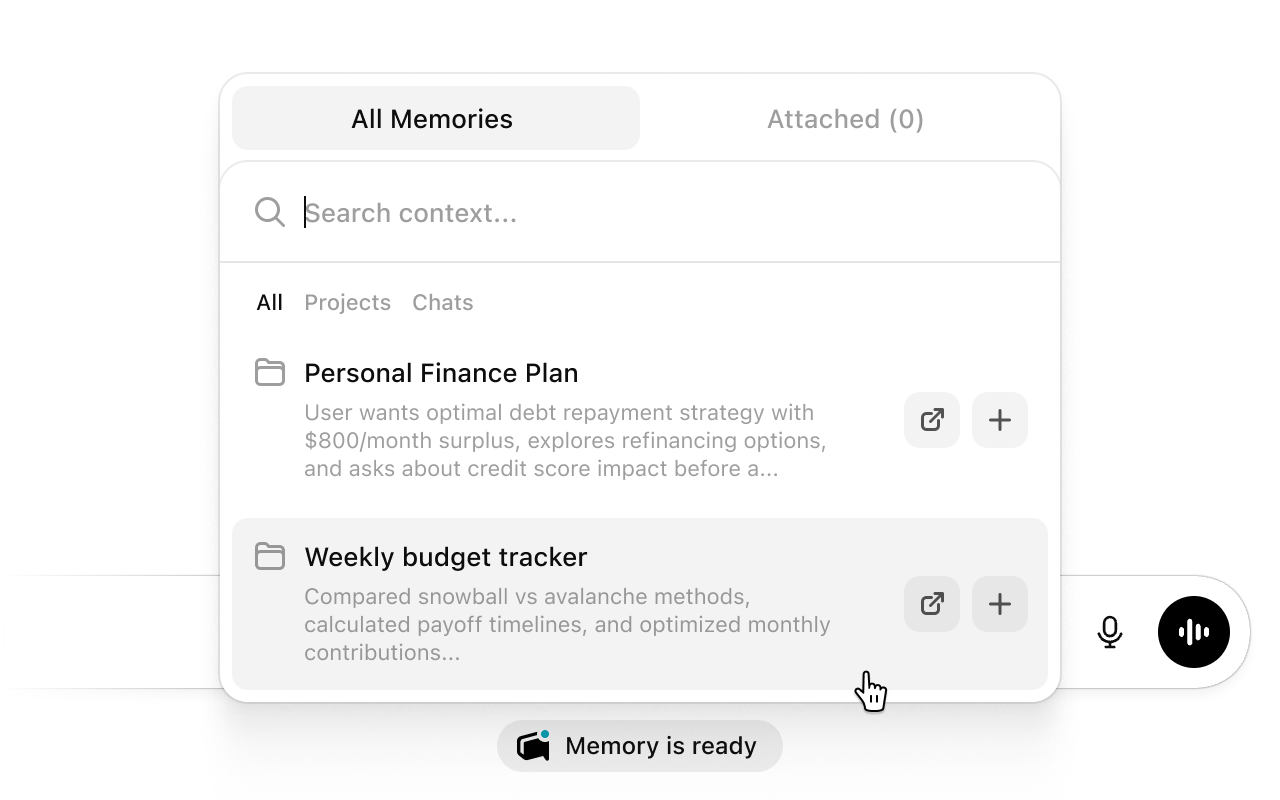 Chat like you normally would. You'll see a MemoryBase tag below your chat box. When relevant memories are found, an indicator will appear showing that context has been attached to your message.
**Click the tag** to preview what's attached, or to manually add specific memories yourself.
The attached context is sent with your message automatically -- the AI will have knowledge from your past conversations without you having to repeat anything.
## In coding tools and AI agents
For tools like Claude Code, Codex, or AI agents, MemoryBase connects through the CLI. Follow the setup guide for [Claude Code & Codex](/coding-tools/setup) or [AI Agents](/ai-agents/setup).
Once connected, these tools can search your memory and pull in relevant context on their own.
Chat like you normally would. You'll see a MemoryBase tag below your chat box. When relevant memories are found, an indicator will appear showing that context has been attached to your message.
**Click the tag** to preview what's attached, or to manually add specific memories yourself.
The attached context is sent with your message automatically -- the AI will have knowledge from your past conversations without you having to repeat anything.
## In coding tools and AI agents
For tools like Claude Code, Codex, or AI agents, MemoryBase connects through the CLI. Follow the setup guide for [Claude Code & Codex](/coding-tools/setup) or [AI Agents](/ai-agents/setup).
Once connected, these tools can search your memory and pull in relevant context on their own.